Showing posts with label Mobile Computing. Show all posts

Tuesday, May 15, 2012

Rant: Windows Phone Marketplace Search

Readers of this blog will no doubt know that I am a huge fan of Windows Phone. But there are some pet hates I have with this platform, and one of them is an issue big enough that a blog about has long been way overdue. It is a first world problem, but it is an important one as far as mobile OS goes.

Dear Microsoft, the Marketplace search feature sucks. My beef isn't with the Marketplace itself, nor is it with the quality or number of apps (which I have no issue with - 80k and counting apps is good enough) found there. It is the search algorithm, or more to say, the number of developers who are gaming the keyword/search feature on the Marketplace. Basically, Microsoft you are not doing a good job with policing the Marketplace!

I will give you a great example of how the search feature on the Marketplace is an awful experience for the user. In this example, I will be using Twitter as it seems that there is a huge market in WP7 for a fully functional Twitter client. What would a normal user do when searching for a Twitter client? Well they would type 'Twitter' in the search field and then press enter. After all that makes sense doesn't it? Go ahead, do it now and have a look at what sort of rubbish the Marketplace throws up when you search 'Twitter'. Don't have a WP7 device? Well check out the results of the UK Marketplace below:

Saturday, March 10, 2012

How Microsoft won me back

The i-mate JAM is my first true smartphone. Announced in 2004, the i-mate JAM was a highly anticipated mobile device being the first Windows Mobile smartphone that comes in a portable package. Also known as the HTC Magician, the i-mate JAM was a beauty. I remember paying £400 to Expansys to ensure I got it on day one and boy was worth it.

As it runs on a modified version of Pocket PC, the compact i-mate JAM was a familiar device to use. I've already owned quite a few none-cellular Pocket PC devices. With a 2.8" (problematic) touchscreen LCD display with 240x320 resolution, an Intel XScale PXA272 processor clocked at a screaming 416 MHz (overclockable to 520 MHz!), 64MB RAM and 1.3MP back camera. It was cutting edge hardware. Best thing about it? It ran on a Windows Mobile 2003 SE for Pocket PC, the mobile OS you want if you were a self respecting smartphone geek in 2004.
My then awesome i-mate JAM next to my still awesome Palm Tungsten T3

Wednesday, December 7, 2011

Windows Phone 7.5 Mango review - the good, the bad and the ugly

It has been more than a month since I switched to using the Lumia 800 as my main smartphone. Coming from using Android exclusively for six months, there are obvious drawbacks with Windows Phone 7.5, but these are few and does not stop me from enjoying the OS. Unlike pre-Mango WP7, WP7.5 does not make me want to hurl the phone with frustration for one, and after getting over the initial teething period - I now love it.

Windows Phone 7 was designed with consumers, not geeks, in mind hence the lack of certain features we geeks take for granted. Nothing wrong with that, but if Microsoft wants to win the smartphone OS war, they need to also pander to the geeks. After all geeks rule the earth, or so that is the common saying here. Part of the problem with Windows Phone 7 is still the lack of apps, but that is changing. Everyday I keep seeing new quality apps get added. It even hosts the best Foursquare mobile client on *any* platform.

Friday, October 28, 2011

Nokia Kinetic concept phone with flexible display

It's been a busy two days at Nokia World 2011. The next few days will be equally as busy as I will attempt to gather what I have seen in these two days into a nice meaty blog post. Asuming I survive Halloween and my birthday first that is.

But before that here is quick video hands-on on what really blew me away: the Nokia Kinetic concept device with flexible screen. Yes it is working concept phone, courtesy of the mad geniuses at Nokia Research Center. While this technology would not be available for mass production in many years, it is just a small sneak peak into what Nokia has in store for us in the future.


Seriously, I can't wait for this flexible bendable future.

Saturday, October 22, 2011

Android Honeycomb still disappoints


I have been using the Galaxy Tab 10.1 for two weeks now, and while I love the hardware and design of the tablet, I can't say the same about the software. For those who have read my review of the Motorola Xoom, you will know exactly what I mean.

Both Motorola and Samsung has gave their respective tablets the necessary power, in this case a 1 GHz dual core nVidia Tegra 2 SoC and 1GB of RAM. Unfortunately both runs on Android Honeycomb, the Windows Me meets Vista of Android operating systems. The UI is confusing, intimidating and not consistent. Like, why can't I clear all my notifications with a single button? And why are the search button all the way on the top left, the app drawer icon on the top right, the notification bar on the bottom right and the navigation keys on the bottom left? Does Google actually think I like moving my fingers to all four corners? I am not some NBA basketball player with long fingers.

Every single Honeycomb tablet I have tried, from the Motorola Xoom to Asus Transformer Sony Tablet S to the Galaxy Tab 10.1 - all of these has the same performance issues. In fact the lag is so bad that it makes the HP TouchPad looks like a well engineered marvel. It's a real issue that even despite having a tablet in front of me most of the time, I prefer to tweet, check my emails, and even surf the web on my Galaxy S2 phone!

There is also a real lack of tablet optimised apps for Honeycomb. This is Google's issue and they must fix it. We know that they have effectively abandoned Honeycomb. I implore Google to look into fixing these issues, by either optimising Honeycomb or making sure Ice Cream Sandwich works darn well on these first generation tablets with Tegra 2 SoC. Don't go pissing on your early adopters Google or the first thing they do after they ditch you is pick up a Windows 8 tablet.

Tuesday, October 4, 2011

Samsung Essential microSDHC card review

Not long ago I received an email proposing that I test a new line of 'indestructible' micro SD memory cards. To be honest I have never come across a micro SD card that has yet to be destroyed and I have been using them for years. SD cards on the other hand are easily killed. Curious I requested they send me one, and two days ago I received it.

The card turned out to be a Samsung branded 8GB class six micro SD card. It looks bog standard and nothing on the packaging claims that it was indestructible, but a quick search later reveals that Samsung does indeed claim that the cards are water proof, shock proof and magnetic proof. The micro SD card does look as classy as Samsung claims, though I do not see how these will affect its usage.

In any case I decided to see if I could kill it. Nobody would ever use their memory card in water - after all, even if the memory card itself was water proof, most devices aren't. There are exceptions of course, but there aren't many. Still I am sure there are times when even I accidentally left them in the washing machine. So that was exactly what I did - leaving it inside a pocket (but making sure it is zipped so as I don't lose it!), I left our Bosch washing machine to do its worst - a one hour 30C cycle and a couple of spins at 1200 rpm.

Needless to say the blessed card survived the arduous cycle of being trapped in a washing machine. Not giving up, I attempted to kill it by placing it between two fridge magnet but to no avail. Finally I gave it a few stamping but it wasn't enough to kill it. At the end of the day I decided that the little blighter had put up a good fight and spare it further physical abuses. It was time to check out how it performs.

The Samsung 8GB micro SDHC card here is graded as a class six card, which means it has to be able to offer a minimum of 6MB/s write speed. I ran it through a benchmarking application, and delightfully found that the write speed was averaged at 10.5MB/s. That's equivalent to a class ten card. On the other hand I found the read speed to be disappointing, only capable of around 17.8MB/s, in comparison to a Sandisk card I have which offers a speed of 49MB/s. Still at 17.8MB/s, the read speed is sufficient enough to stream full HD films comfortably from.

All in all, there is plenty to like about this card. It is available from Memory Card Zoo for a not too bad but could do better £10.79. It is a little on the pricey side (for a 8GB card), but can you really put a price on data reliability? Other brands may offer more value for money, but at least with this you can be assured that your data is in safe hands, uhm, I mean card.

Saturday, September 10, 2011

Fellowes GoRiser portable laptop riser review

The Fellowes GoRiser is a portable laptop riser and part of Fellowes range of ergonomically designed products aimed at providing mobile warriors with the means of using their laptops in a more comfortable manner. It is capable of holding lalptops up to 17". What is different with the GoRiser and other laptop risers I have used in the past, including the Belkin Cushtop, is it is foldable and thus portable. Fold it up and carry it on your laptop bag for easy transportation. This product is part of Fellowes's Smart At Work campaign of increasing awareness on work ergonomics.

Sunday, July 10, 2011

Sony CliƩ PEG-UX50

Back in 2003 I was a PalmOS-toting fanboy. I had a Palm Tungsten T3, but what I wanted really was the Sony Clie PEG-UX50 Personal Entertainment Communicator. Sony was in the process of exiting the PDA market, no doubt to concentrate on their Sony Ericsson partnership (which resulted in the Symbian-powered P800 the year earlier), but not before unleashing a couple of really desirable hardware (the TH55 was another one). Sadly the UX50 was too expensive, retailing at around £500, but then it had specs and features that were unheard of back then. In fact the 480x320 high resolution screen found on the UX50 was so advance that even Apple was still using that screen resolution on their iPhone models until 2010.

Monday, April 11, 2011

Nokia E7 preview

Well here it is, the Nokia E7 - Nokia's newest Eseries flagship (soon to be dethroned by the Nokia E6) and the hire apparent to the Communicator series. In regards to Nokia's naming scheme, my views of the E7's naming scheme haven't changed since Nokia World 2010 when it was first officially unveiled and where I had my first hands-on.

The built quality is brilliant. I can find absolutely no faults with the hardware design and the materials used. It feels solid. The slider feels great and I found the AMOLED screen with Clear Black Display to be stunning. But I can't help thinking what I am seeing here as what was a Nseries smartphone rebadged as an Eseries because Nokia either could not get another Eseries out in time or felt that marketing this as a Nseries phone would remind people of the much hated Nokia N97.

The specs are typical Symbian^3 specs in that it runs on a ARM11 680 MHz processor, which isn't a big deal considering how optimised the OS is with in taking advantage of the GPU. The 256MB of RAM does seem lowly in comparison to most modern smartphone, and while Symbian^3 does not require much RAM, power users will likely encounter situations when background applications are forced to close due to insufficient RAM.

Like the Nokia N8, the E7 comes with HDMI out function which, coupled with the ability to play 720p videos, is useful. This is especially true when used with an application like Nokia Big Screen. It also has 16GB built-in storage. Unfortunately the E7 does not come with a external memory card slot, so the 16GB is all that users will ever get. This isn't a big deal for most users (even the Samsung Nexus S comes with only 16GB storage), but multimedia addicts will likely want to look elsewhere. The keyboard is pretty good, and an improvement over the one on the prototype. While it is only a four row keyboard, the keys are well spaced and provide good tactile feedback.

The camera on the E7 is the EDOF type. First seen on the Nokia E55, EDOF has spread like a virus onto every none-camera focused smartphone, which right now is everything apart from the N8. As I carry my own dedicated digital camera almost 99% of the time, I honestly could not care less what camera the E7 has (in fact I do not care what camera the N8 has!). However, because of the price, Nokia should have at least included a better camera with it. An autofocus camera with macro ability would also be useful for business users (you know, the typical Eseries users) who would want to scan documents and business cards.

I will be using the E7 for two weeks. Expect a review in the next couple of weeks. If there are any questions please ask away, either here or on my twitter account.

The Nokia E7 is available now for a sim-free price of £489.99.

Wednesday, January 12, 2011

Gravity for Symbian review

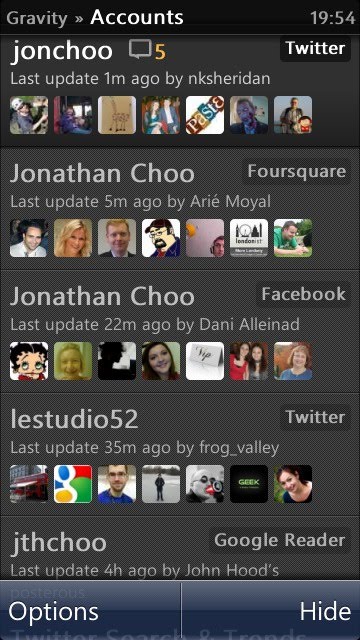
Gravity is a rarity among Symbian applications. It has a UI that not only looks good, but also works great. It is fast and comes with massive loads of features. What started out as a simply Twitter client, the sole developer at Mobileways.de has implemented support for Google Reader, Foursquare, Facebook and the open source StatusNet, with varying degree of success.


Considering how backwards Symbian is supposed to be (according to American blogs anyway), and how there are virtually zero competition on the platform, the number of features on Gravity is quite a feat. The sheer number of features, it's stableness and speed, easily makes Gravity one of the best mobile social network clients on any platform. And I say that with a straight face.

At a time when Nokia is urging developers to code in 'code once, deploy everywhere' Qt, Gravity is still reassuringly native. I've nothing against Qt, but so far none of the Qt based applications I've seen has convinced me it is better than native. Gravity is compatible with S60v3 and all modern Symbian touchscreen devices from Samsung's abandoned at birth Omnia HD to Sony Ericsson's cute Vivaz and Nokia's 'flagship' N8.


Let's begin with Twitter, as this is what Gravity was designed for. Gravity has almost all the features that I could ever want from a mobile Twitter client. It supports both native and old-style retweets, geolocation tagging of tweets, follow/unfollow, direct message (with threaded UI), the creation and management of lists, uploading images to popular image sharing sites (TwitPic, Flickr etc.), alert, multiple accounts, draft and schedule posts, homescreen widget, notification (in both screensaver on Symbian^3 devices, as well as audible/vibration) and much more.

There are a couple of features I would like to see added. For example an alert when someone follows, filters and the ability to open URLs to Opera Mobile rather than Symbian's native Web browser. Speaking of URLs, you can also set Gravity to save URLs to Instapaper and other services to read it later, a useful alternative to using the favourites function to bookmark posts to read later.


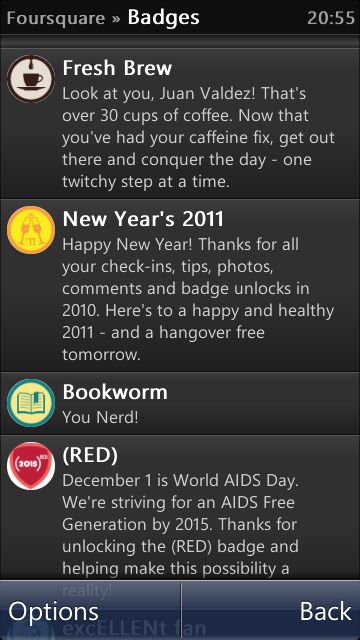
The Foursquare client is as basic as it goes. It only allows check-ins and shouts (to Twitter and/or Facebook - provided you have your Foursquare account is linked to them). There are no supports for leaving and viewing tips, nor is the ability to delete previous check-ins from the history present.

The most curious absence is the lack of Specials, a Foursquare feature that allows participants to reward check-ins to users, so don't go deleting that amateurish official Foursquare Symbian client just yet. Having said that if all you want to do is check-in or shout, Gravity is perfect.


If you are a Facebook user, you will be pleased to know that Gravity supports pretty much most of the important features of Mark Zuckerberg's Friendster rip-off, including Messages (in threaded conversation view), notifications (no friend requests here), News Feed and Status Updates, including replies. It isn't a Facebook mobile client replacement, offering even less than Facebook's touchscreen mobile website. But it is indispensable if all you want is a quick glance on what your Facebook friends are up to, post a status update or reply.

A built-in RSS reader in the form of Google Reader is the next major feature of Gravity worth writing about. This is pretty basic, but at least it has all the essential functions one would normally need form a newsreader software. Like the Twitter bit of Gravity, URLs can be posted to Delicious or added to Instapaper or Read-it-Later. There is an option to easily tweet the post as well.


In an age of 99p mobile apps, Gravity isn't cheap (£8 via the Ovi Store), and that's before taking into account the amount of good freeware social network clients you can get on competing platforms like Android and iOS. But if you have a Symbian phone, and you need a powerful Twitter application then Gravity is your answer. You could do a lot worse with £8 anyway.

I also have a relatively modern Android phone (with around ten Twitter clients installed!), and my girlfriend has an iPod Touch 4G which she tethers wirelessly to her ageing Nokia none-touch smartphone, and both of us always fall back to Gravity simply because we both think it is the most effective mobile Twitter application available on any mobile platforms.

Friday, August 20, 2010

Three MiFi 2 review

I was recently given the chance to sample Three's new MiFi wireless hotspot device. The MiFi is based on Huawei E585 and is a 3G HSDPA modem that also functions as a portable WiFi access point. This allows up to five WiFi-equipped gadgets to connect simultaneously to a single mobile broadband connection.

Despite being predominetly plastic, the MiFi is solidly built. The battery is accessed from the bottom through a cover. Below the battery contains the Sim card slot. There is a microSDHC card slot on the side, but I honestly have no idea what that's for! The solitary on/off button also doubles as a display toggle. It doesn't get more simple than that.

There is a small but useful OLED screen on the front which displays basic information such as the signal strength, connection time and how many devices are hooked up. The battery is good for about 4-5 hours, which I think is reasonable.

No set up was needed. Simply switch on the device and within less than a minute it was ready to be used. Key in the wireless security pass key to whatever device you want to pair it with and you are ready to surf on your notebook, play multiplayer PSP games on the go, download apps on your smartphone or whatever catches your fancy.

During my week long trial, I actually enjoyed the MiFi as it allowed me the freedom to test multiple WiFi-equipped phones like the C3. I also paired it with my Nokia X6 to stream music via Mobbler. If there ever was a killer application for mobile access points like the MiFi, it would be a music streamer like Mobbler or Spotify.

Download speed is decent, provided you are in an area with HSDPA 3.6Mbps support (up to 2.8Mbps according to Three). Unfortunately the MiFi doesn't default to 2.5G mode outside of Three's coverage so there were times when I was rudely cut off. Thankfully this is a rarity in London and only occurs in pockets of rural area in Hertfordshire and North London where I frequently travel through.

Would I get one? Likely, but first I need to get a new battery for my notebook (it only lasts 15-30 minutes now...). I only ever try to carry one smartphone with me at any one time, but the MiFi does have its conveniences such as making SIM card switching between devices a thing of the past. The new MiFi is available from £50 on Pay As You Go, and frankly a total of £75 for a Pay As You Go MiFi with 7GB allowance isn't too bad.

I may just bite.

Thanks to Michelle of the now shut Three Mobile Buzz for the trial device!

Saturday, May 1, 2010

HTC Legend review

I have never been impressed by Android, particularly the UI, so I wasn’t looking forward to receiving the HTC Legend for review. But this thing runs HTC Sense, and I have high hopes that it would be able to tuck away some of Android’s own UI deficiency.

First the hardware. The Legend features an incredibly sleek aluminium unibody design. This gives it a highly desirable and premium look, but it also makes it a very slippery phone. There are some rubber on the backside, but they are on the wrong sides. The front is dominated by a gorgeous 3.2″ HVGA (320×480) AMOLED capacitive touchscreen display. It is equally as good as my Walkman X-series DAP. While the screen works amazing indoor, it is for all intent and purpose utterly useless during sunny days.

Below the screen are a couple of hardware keys. These includes Home (self explanatory), Menu (assessing the menu), backspace (return to previous screen) and a magnifying glass for bringing up the quick search box. Below the row of keys is the optical joystick shaped like a tiny ball. While it duplicates the functions of a traditional d-pad or optical trackpad, I can’t say I enjoyed using it due to its sensitivity and its location very near the bottom.

The left side features a volume rocker. After years of getting used to the volume keys being on the right side, it did take some getting used to, but it isn’t a huge issue. The right side on the other hand is bare. The power key and 3.5mm headphone socket resides on the top. The bottom house the micro USB charging/sync slot, microphone and lanyard loop. Finally the backside features the 5 megapixel auto-focus camera and a single LED bulb for flash duties. The loudspeaker sits on the left side of the camera module.

Accessing the battery, sim card slot and microSD card slot requires you the pry out the rubber plastic hatch. Removing the hatch will expose a flap that when flipped will give you access to the 1300 mAh battery, sim card slot and microSD. microSD cards are unfortunately not hot-swappable as the battery will merely slide out if you try. Overall the build quality is excellent with nary a flex or creak when squeezing it.

Booting up the HTC Legend reveals HTC Sense running on top of Android 2.1. Sense is a very pretty and quick UI, though it gets tedious after a while. I also can’t say I like the small icons that much, which makes it harder to select especially those with big fat thumbs. Widgets are easily accessible by swiping around either through the screen or the optical joystick.

There are two hugely annoying bit about the HTC Legend’s software (and I suspect all HTC Android phones with capacitive screens). First the screen is just too sensitive. I can’t remember the number of times during the past one week that the OS would misinterpret an accidental skin contact for something else, thus ruining what I was doing. Second, the screen vibration feedback only works on the virtual keyboard and nothing else.

The Legend has surprisingly good audio quality. While it isn’t no where near my Walkman or even some mid-end Nokia phones, it is a massive improvement over my last HTC device (Artemis) – which often sounded like a cheap MP3 player you get at market stalls. The Legend on the other hand sounds excellent via my Sennheiser IE 8, with good neutral mids though it does suffer from bass drop-offs. Overall, the Legend is competent enough to be a ‘backup player’. The same can’t be said about the bundled headphones which is pretty awful sounding, so make sure you invest in a proper pair of headphone.

The 5 megapixel auto-focus camera has a maximum resolution of 2592×1936 pixels, and should perform well, in theory. The UI unfortunately left much to be desired which isn’t surprising to be honest. Still there are plenty of manual settings for people who wants to get the most out of the camera. Image quality is average with pictures suffering from poor contrast and plenty of noise. This isn’t a camera you would want to use in low light situation. Samples are provided in the gallery below.

99.99% of all cameras has shutter buttons on the top right casing. It has been the norm for decades, if not forever since compact consumer cameras were first created. There is a reason why it is there – it allows one to hold the camera securely, even one-handed if they wanted to, whilst using the index finger to take pictures. Not so with this. The camera shutter is that small poxy round thingy known as the optical joystick I mentioned earlier. It is so unnerving to use.

The camera module at the back is too closed to the edge, meaning if I am not careful my fingers will often find its way into pictures. I could use it one handed, but the combination of poorly placed camera shutter button joystick and slippery body meant that unless I used it two handed I would be staring at an incredibly expensive paperweight.

Like most modern smartphones, the HTC Legend comes with a built-in GPS receiver chipset. Cold lock without A-GPS takes a couple of minute which is pretty much standard these days. It does not ship with any navigation application bar Google Maps (it is a Google OS after all), which works well provided you have a pretty good data bundle with your service provider. Using Google Maps is easy enough so I won’t bore you with details about it.

Perhaps the most important bit of a smartphone that many forget is the call quality. Fortunately the voice quality and reception is above average (tested on T-Mobile UK network). The Legend would also vibrate when your call is answered, which is a very useful feature where one do not have to hold the phone to the ear in order to know if the call is connected. Unfortunately the Legend does not feature a front camera, so video calls are not possible.

The phone book (called People) is one of the most fleshed out address book programs I’ve had the pleasure to use on any phones. It not only holds all the basic details as expected from a phone book, but will also display text messages and e-mails, Facebook/Twitter/Flickr integration and call history – all of which are sorted in tabs associated with that particular contact.

HTC has produced a great looking smartphone with the Legend. At around £350 in the UK for a sim-free model, it is similarly priced to many decent smartphones with similar spec-ed on the market like the N97 Mini and Motorola Milestone. Both the N97 Mini and Milestone has slide out keyboards, so can be argued as better value (the Milestone also has better overall specs). though one does runs Symbian^1 which most either love or hate, and the other runs on stock Android. And for only £50 extra you can get the HTC Desire, a phone with much better spec and a better form factor.

While I’ve not change my mind about Android, the Legend should be a sound investment for people who are in the market for a phone with such an OS. It is rather lovely looking. However I do believe that HTC has taken the form over function road with this. It isn’t something I can’t imagine people would be happy to use as an everyday device after the initial oohs, and aahhs. Maybe the Desire?

Summary

+ Highly desirable design
+ Brilliant display with great colour saturation
+ Quick
+ Latest version of OS available

- Memory card slot not hot-swappable
- Display unusable in daylight
- No front camera for video calls
- Some UI quirks

This review was originally published on fonearena.com

Tuesday, March 16, 2010

Opera Mini 5 and Mobile 10 released

Opera has finally unleashed the release version of Opera Mobile 10 and Opera Mini 5 on Symbian, Windows Mobile and that not-really open source whatshisname. Opera Mini 5 is a Java application where websites will be 'cleaned up' and images compressed on the server side before being sent to the client (thus saving the user precious mobile bandwidth), where as the native Mobile 10 will crunch the data on the phone itself.

Speed is noticeably quicker on the new versions compared to the old Beta 2, in both rendering and UI navigation itself. The biggest issue I have is the lack of ability to delete Google as the default search engine. For all the wolf cries Opera has been making to the EC in forcing Microsoft to install a browser ballot on their desktop OS, I find that Opera are a bit hypocritical for not allowing me to easily switch the search engine.

Minor issue aside with the search engine, Opera Mini 5 and Mobile 10 are great alternative browsers for your smartphone. Go download now.

Tuesday, February 16, 2010

Windows Phone 7 Series


Gosh, what a let down. Sure it is pretty and has a slick and flashy UI but I personally can't see increased productivity with this. It is also rumoured not to feature multi-tasking which is a huge step backwards, something that has always set previous Pocket PC and Windows Mobile iterations aparts from other mobile OS. I've liked being able to switch from a game of Snails to making a text message to web browsing to planning my next trip, without closing any of these applications.

I hope mobile manufacturers will take note that not everyone wants animations or mobile computers. Sometimes we just want them to work quicker. This is why I always disable animations and effects on any new phones and PC installation.

Monday, February 15, 2010

Symbian^3


Ok, it looks pretty enough. But I hope they don't just concentrate purely on flashy UI and pretty icons as those does not make an intuitive operating system. What I would like to see is how Symbian^3 adapts to none-touchscreen models (or touchscreen phones with face buttons) as that (to me at least, IMO) is the quickest way to use a phone.

Tuesday, December 1, 2009

Qt 4.6 released


Nokia has today released the next version of Qt, a C++ cross platform graphical application development toolkit. Qt 4.6 technical preview adds native support for Symbian (including Symbian S60v3 and S60v5) and Maemo 6, as well as Windows 7 and that other platform that nobody except bloggers uses.

Future Symbian releases won't look anything like the video demo above but it will give you an idea of how a Qt (pronounced as 'cute') developed application is expected to perform when it replace S60/Avkon from Symbian^4 onwards. Exciting times ahead for both Symbian and Maemo fans.

Thursday, July 16, 2009

Nokia E75 "Teach the Technophobe" week two

The second challenge from WOM World/Nokia's, part of the 'Teach the Technophobe' competition, has arrived and it is pretty straight forward. Here it is:
Pigeons may be the bane of anyone who's ever tried to eat a sandwich in a public park, but cut them some slack. Has any bird ever carried so many messages?

Just like those pigeons used to carry messages back and forth, email is a two way process. Why not tage a photo on your device and email it across to your coach to see what he/she thinks?

It could be funny, it could be poignant, it could be dull (don't make it dull), but the goal is to elicit an interesting response so be creative.
Now I haven't coached my partner yet (she is still out), but I'll go ahead and post a tutorial here for any newbies that may be reading. Nokia has made things simple by integrating functions within the camera applications that allows one to quickly select an image to be sent via e-mail, thus reducing the number of steps needed to attach an image to an e-mail. Here's a step by step guide using the Nokia E75.


Capture the image. This is simply enough.


The image preview area allows you to delete, view the image in the gallery, share it online or send it via a messaging client.


Choose the method of delivery (in this case e-mail).


If you have more than one e-mail account, select the account you wish to send the image from.


The image will have been attached already. Compose the e-mail, choose your desired recipient, add more attachment if you wish etc.


Send, and follow the on-screen promts which allows you to select your desired access connection (3G, WiFi etc.).


The message will be stored in the outbox if there is no working connection, or if you wish to delay sending (e.g. if there are no WiFi access point).


You can always manually send it if once you are near a working WiFi access point.

As you can see the process from capturing an image is very simple and seamless. It was never this simple during my Palm OS and Windows Mobile days (though I suspect that things may have improved significantly now). With integrations like this, mobile messaging and e-mail has never been easier.

Update:


My partner (the technophobe) actually found the process to be rather easy after I pointed out that images can be attached to an e-mail message from the camera application itself. She did have a bit of a hiccup as she did not realise the e-mail was kept in the outbox and she had to manually connect. Once she figured that out, it was plain sailing.

This is picture of Patrick, the loveable and skinny red dog, of whom we have a wonderful history together.

Nokia E75 coverage:
Nokia E75 camera review
Nokia E75 e-mail
Nokia E75 GPS review
Nokia E75 music and sound quality review
Nokia E75 pictures & first impressions

Wednesday, July 8, 2009

Nokia E75 "Teach the Technophobe" week one

Part of my agreement in obtaining a loaner E75 with WomWorld/Nokia involves taking part in a challenge called 'Teach the Technophobe'. Each week I'll receive four challenges of sorts, where I am required to tutor a technophobe friend or family on the E75's various capabilities. My technophobe of choice is my partner, who while once used a smartphone (HTC Magician) for two years is completely oblivious to their messaging and web capabilities, and never use any advance functionalities like document editing or GPS. Today I received my first challenge where I have to coach a technophobe on how to set up an e-mail account on the device and send a test message.

It sounds simple enough, but it isn't always the case with previous mobile technology. I remember back in my Palm OS days where I have to set up my Sony Clies and Palm/palmOne devices to synchronise my e-mail account (Yahoo! UK). The devices back then have no mobile phone capabilities, so one of the few ways of pulling down e-mails was through using a mobile phone (typically a Sony Ericsson back then) as a modem. This can be done via either Infrared (remember those?), Bluetooth or wired tethering, and keying in all the necessary port address, numbers and whatever else that is required. It was do-able, but I can see how newbies will be put off by all the steps required to just receive an e-mail.

These days such excuses are no longer valid. With newer and more matured platforms, setting up e-mail is easy as steps are largely automated, as most of the process are handled at Nokia's server end. With the E75 this is easy. Nokia has made huge improvement with the way their enterprise devices handle e-mail. The E75 e-mail clients supports both traditional POP3 and IMAP based e-mails such as those provided by popular free web-based e-mail like Yahoo! or GMail, as well as corporate e-mail by way of Microsoft Exchange push e-mail technology. My partner has a work e-mail account which, with my help, was setup to fetch them in no time. Setting it up to use with her web-based account was even easier. It took her less than 5 minutes to get the two e-mail accounts running on her E75.

Creating an e-mail account on the E75 is easy. First launch the E-mail application, the click on 'New', which will launch the e-mail account creation wizard. Here you can select the connection required by the E75 to access the internet (such as 3G or WLAN). The next dialog box will ask for the e-mail address (example@example.com) and the next will require you to key in the password. If you are setting up an Exchange account, you will need to input further settings such as the web address where your company's Outlook Web Access resides. Likewise if you are using an obscure e-mail service or is hosting your own e-mail server, you will need to input the settings manually, though I suspect people who does so will have no problems doing so.

Once you are done, the e-mail client will receive a new icon (in the form of whichever webmail you choose, Yahoo! and GMail icons both turned up fine) which takes you to your e-mail account, where you can connect and syncronised your e-mails. Advance settings are available that allows you to customise each of your mailbox. For example you can set it to retrieve only a certain amount of kB or the number of messages from the inbox it is allowed to download. You can also set it to syncronised folders (IMAP only) or and the update interval it connects to your mailbox.

Nokia's e-mail client may lack the glamour finish of its rivals, but what it lacks it makes up for its ease of use and vast amount of functionality. Attachments is supported, as is the ability to set priorities. There are plenty of powerful shortcuts to remember that will no doubt increase productivity. For example if you want to reply to an e-mail, just press 'R' on the keyboard. Similarly press 'F' to forward the e-mail, or 'D' to delete etc. The client also supports full HTML messages.

My extensive Nokia E75 coverage:
Nokia E75 camera review
Nokia E75 GPS review
Nokia E75 music and sound quality review
Nokia E75 pictures & first impressions

Thursday, January 8, 2009

Palm webOS and Pre smartphone


My first proper tablet PDA was a Palm m500. I've since owned various Palm OS devices since including the Sony Clie N760, T615 (sexier than an iPhone - look it up), NR70V and the famous Palm Tungsten T3. What I've never owned however was their Treo smartphone line. Instead I've always preferred Series 60 or Windows Mobile for my smartphone need. This may soon change...

Many has writen off Palm, Inc. as a dead horse (including me), but today has proven us wrong (well almost). Palm still has a lot to do if they ever want to claw their previous marketshare (highly unlikely IMO), and the new webOS and Palm Pre smartphone seems to be the right start. The OS look the part, and more importantly they seem to be designed with functionality first. The Pre on the other hand reminds me of the HTC Blue Angel (which I owned briefly) and seems to be very usable, albeit a bit on the ugly side. Hopefully the GSM version will be prettier.

Tuesday, October 21, 2008

Lenovo ThinkPad X61 ultraportable review


Ever since Lenovo took over IBM's PC division, there has been speculations that the legendary built quality of ThinkPad would suffer. Having recently acquired a ThinkPad X61, I can safely brush aside these concerns as unjustified. ThinkPads laptops are still quite possibly the ultimate notebooks for people who who demands the most reliable portable workhorse, and the ultra portable X61 is no different.

The X61 has since been replaced by the X200, but there are several reasons why you shouldn't yet dismiss this older model, especially when you can get them for a fraction of the cost of the X200. Coming up from the X31, I found the X61 to be almost exactly the same size (smaller actually) and lighter too (200g less with standard 4-cell battery). The overall classic bento shape of the ThinkPad has been retained while thankfully black remained black, making this iconic series instantly recognisable from other me-too notebooks. Personally I kinda dislike the new X200 due to its wider footprint as well as huge bezel, but maybe that's because I am jealous!


Specifications:

CPU: Intel Core 2 Duo T7100
Chipset: Intel 965 Express with Intel X3100 GPU
Memory: 2x 1GB DDR2 PC2-5300 (max 8GB)
Hard Drive: 100GB 7200rpm SATA
Screen: 12.1" 1024x768 LCD
Other: Bluetooth 2.0 EDR+, Intel PRO/Wireless 3945 ABG
Operating System: Windows XP Professional SP3
Warranty: 3 years walk-in (2 1/2 years remaining)

I was initially disappointed of the lack of rubberised texture from the ThinkPad X31 notebook, though I still suspect that the lid is still rubberised. The display is fitted with a 12" LCD screen sporting a fairly disappointing XGA resolution (my decade old Inspiron 7000 had that resolution!). The screen here is very bright and does not suffer from dead pixels or light bleeding. On the top you have one of the most beloved IBM innovation, the ThinkLight, which is a LED that shines down at the keyboard allowing you to type in the dark. Two latches near the edge keeps the lid shut. On the bottom are a set of status lights. Depending on configurations you can easily see the status of the ThinkPad's WiFi, Bluetooth, battery, hard drive, power, standby etc.


Like previous X-Series ThinkPads, the X61 is fitted with an almost full sized keyboard. If there is a single reason to get a ThinkPad, it is for the keyboard. Quite simply, ThinkPad keyboards destroys all their competitors. I even avoid using external full size keyboard as the keyboards here are very robust, has a comfortable key travel, isn't too loud and does not flex. You can comfortably use this for hours without nary an ache. A TrackPoint sits in the middle of the 'home' area. Some may hate the nipple as a mouse device, but I absolutely adore it. The middle UltraNav button allows you to quickly scroll down documents or web pages. As a package, the TrackPoint is more intuitive and accurate, and its position allows for less finger travel thus allowing for increased productivity.

The power button sits above the keyboard near the middle. Next to it are the volume keys and ThinkVantage key (formerly Access IBM on older models), which when pressed will bring up either the Productivity Centre that help configure or diagnose problems with the notebook, or the Predesktop Area (hidden partition recovery area). Unfortunately compared to the X31, the keys here are small and clumsy, but they do work much better than those touch-based one you find on flashy notebooks. As Lenovo now fully owns IBM's former PC division including the ThinkPad line, the old classic RGB IBM logo is now sadly gone forever (no amount of pleading will bring them back lest IBM buys back the ThinkPad division which I doubt). Imprinted on the bottom right is a new ThinkPad logo, with the words 'X-series' highlighting Lenovo's desire to acknowledge the strong brand loyalty.


The bottom front of the X61 has a WiFi on-off toggle. The left side contains a single type-II CardBus slot. Below it is a full size SD-IO card slot (it is SDHC compatible). A Gigabit LAN port sits next to them followed by a legacy VGA port, a single USB 2.0 port and finally the vent. On the right side of the X61, we have a 4-pin IEEE1394 port (FireWire, i-Link), two additional USB 2.0 ports, headphone and microphone 3.5mm jacks, 56k modem port, the new power socket and a standard Kensington lock port. The hard drive access bay is also accessible from the right side, though you will need to remove a single screw from the chassis to pull it out. The back side is reserved for the battery. The optional 8-cell battery does stick out quite a bit. As for the battery life, the standard 4-cell battery works extremely well, providing me with enough juice to do a complete system recovery and play time to boot during my first test.

On the bottom is a single speaker, RAM door (which gives you access to two SODIMM slots), the UltraBase docking station port, battery latch and various screws. If you look closely you will also see two keyboard drainage holes, where accidental spillage of water on the keyboard will just drain right out. The speaker is okay for watching various YouTube videos of morons attempting to prove Darwin, but you'll definitely want to hook it up to an external speaker for watching films. Removing the bottom will reveal two MiniPCI Express slots, one of which is taken up by the WiFi card (in this case an Intel PRO/Wireless 3945 ABG). The other is empty and can be configured to take an authorised WWAN card. Speaking of wireless, the Intel PRO reception is good though I did wish that it was configured with an Atheros powered ThinkPad 11a/b/g card. Jennifer's Acer has an Atheros card that is able to see networks my X61 was unable to. That said the Intel PRO card performance was still acceptable.


L-R: Sony PS2 Slim AC, Lenovo 65W AC, Dell Latitude 65W AC

Overall built quality is excellent. The stainless steel hinge allows you to swivel the screen 180 degrees and is so sturdy that where other notebooks will simply snapped into half, you can have no worries carrying a X61 by its lid (I don't recommend abusing your ThinkPads - but they are built to be abused!). At 1.41kg, the ThinkPad X61 is extremely portable. Even with the optional 8-cell battery the notebook weights around 1.6kg. Including the optional UltraBase docking station, the weight barely exceeds 2.7kg. Sadly the X61 uses the new AC barrel plug design, so it won't be compatible with previous ThinkPad chargers. On the upside the new Lenovo 65W AC adapter is small, petite and weighs less around 260g. The total weight for a X61 with 4-cell battery and the 65W AC is a shoulder friendly 1.7kg.

Performance wise the X61 blows my old X31 away. This isn't surprising as the X61 is fitted with a Merom-based Intel dual core processor, but even in single threaded benchmarks like Super Pi, the X61's 1.8Ghz clock speed completely thrashes the X31's 1.4Ghz clock speed, calculating at more than twice the speed despite the modest clock speed advantage. Even then, the X61 is almost always silent and if the fans do kick in, isn't as loud as the X31. Heat was never an issue with the newer model too, despite having opted for a full voltage C2D. I can comfortably use it on my lap. Unfortunately despite supporting Socket P, the T7100 is soldered down. If you desire to upgrade to a faster processor in the future, you'll have to replace the whole motherboard. You can easily purchase spare parts direct from Lenovo so long as you know the FRU part you are seeking.


The benchmark results certainly would not set the world on fire as the T7100 processor and hard drive is clearly on the average side.

Super Pi 1 million: 31s
wPrime 32 million: 48s

In terms of real world usage I find it more than fast enough. With multiple processes queueing on start-up (mainly ThinkVantage utilities, Comodo firewall and AVG), the system is able to cold boot to usable state in less than 40 seconds despite the processor rarely clocking above 1.2Ghz. Even a bloated workhorse like Firefox 3 is able to start up with minimum fuss despite having eight add-ons enabled. I am running Windows XP with it, but I don't see any possible issues with it running Vista. The Intel X3100 integrated graphics won't allow you to play modern games, but it is good enough for Telltale's Sam & Max and perhaps even SimCity 4. I had no problems playing 720p and 1080p WMV files, though it did struggle at times with 1080p h.264 files.


The ThinkPad X61 notebook came bundled with some bloatware, of which I purged by doing a complete re-installation through the Rescue & Recovery application during boot-up. You can select which program is omitted during the recovery. Naturally first class junks like Google Desktop, Live Toolbar and Norton something was de-commissioned at the source. Apart from Lenovo's Message Center, I allowed most of them to be installed as unlike most third party applications, ThinkVantage is actually useful. For example their Power Manager program is great for optimising battery life and even gives you detailed battery information including manufacturing date, current charge capacity as well as the number of battery charge cycles you have used up. Perhaps the most useful is the Active Protection System which automatically parks the hard drive's head when it detects movement via the built-in accelerometer, though if you do install a SSD drive you will be stupid to keep this utility activated.

Overall I am glad I got the X61. Sure I could have gotten something flashier, faster, thinner and more expensive to sit with in Starbucks, but the X61 is just as sexy offers features that may not exist in more expensive alternatives. Most importantly is the reliability and durability that comes with this machine. Despite getting mine used, the transferable 3 year warranty (2.5 years remaining on mine) and the peace of mind that comes with it makes it worth it. ThinkPad X-Series are powerful machines that can be configured up to the fastest mobile Core 2 Duo processors and make suitable desktop replacements (provided you get their UltraBase), so don't be fooled by their petite size.

+ Good general computing performance
+ Mature ThinkVantage applications
+ Sturdy built-quality
+ Still the best keyboard on the market
+ Classic ThinkPad design
- CPU soldered down
- Outdated screen resolution
- No recovery DVD

9/10